The Problem
In my last article i have given you some tips & tricks how to get your data into ThingWorx. Since I assume that somebody wants to see the sensors data in action I am going to give you a shot primer here.
The Solution
ThingWorx has a very powerful rendering engine, which allows you to generate simple 2D dashboards (shown in this article), but also to markup 3D models of your things with live data. So - lets get started:
Step 1: Create a mashup
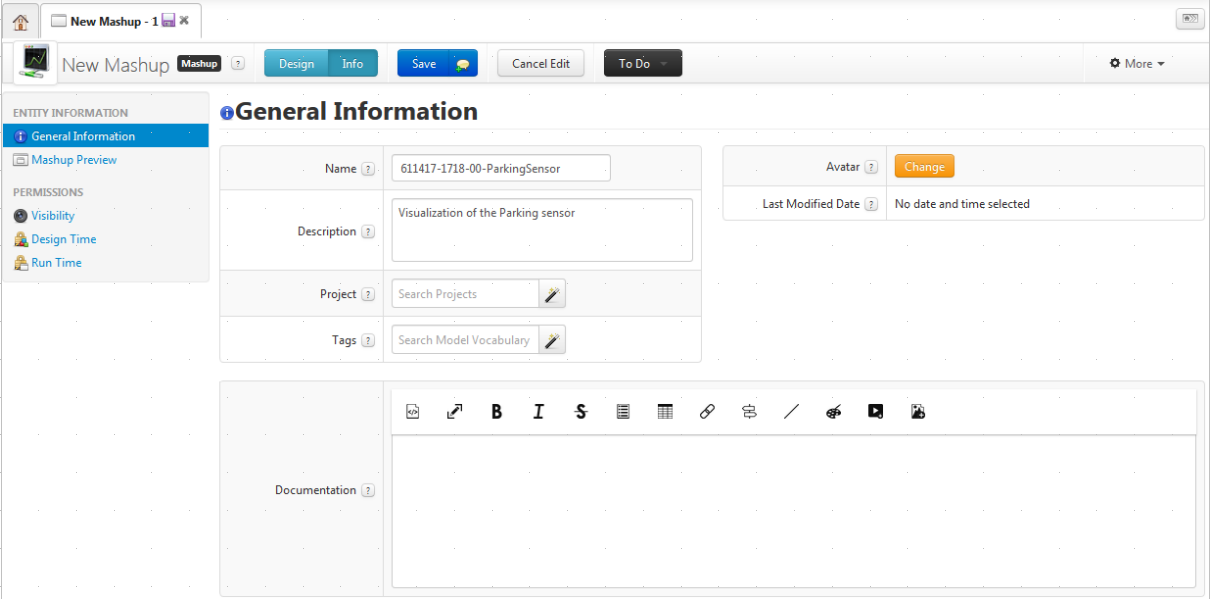
The first step is to create a mashup (the ThingWorx word for visualization). This is where your data can be displayed afterwards.
Step 2: Put some widgets on it
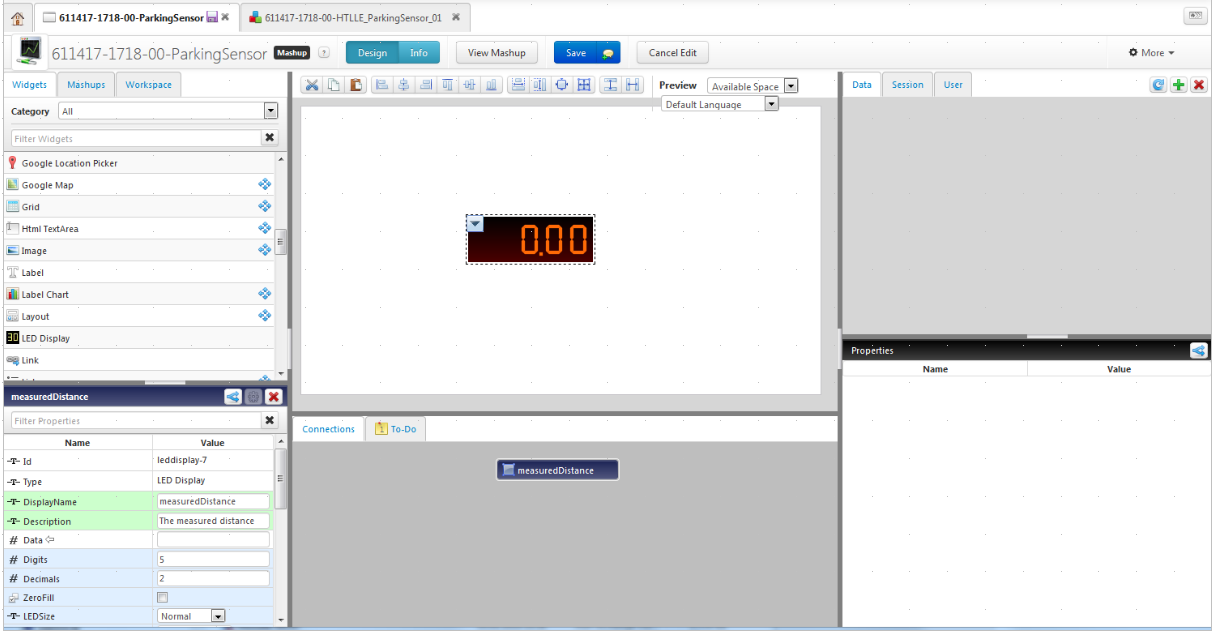
In Design: Add a Pane, and afterwards add a LED Display. Don’t forget to set the display name and the description to something useful.
Step 3: Add a datasource
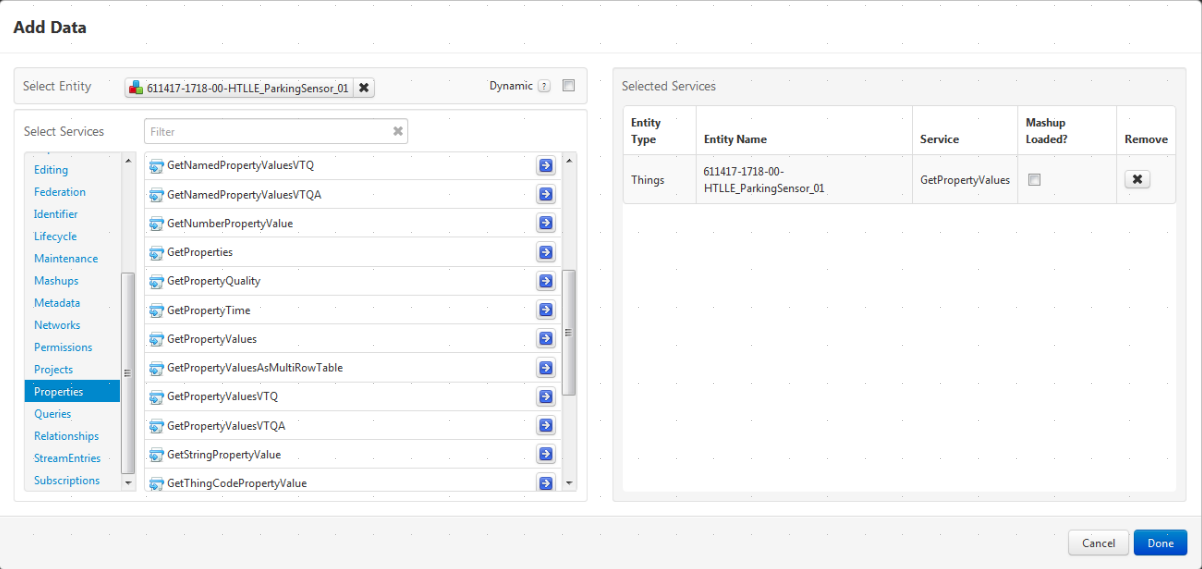
Add Data source (our thing). Since we want to display the current value, we have to add the GetPropertyValues Service
Step 4: Bind the property of our thing to the widget
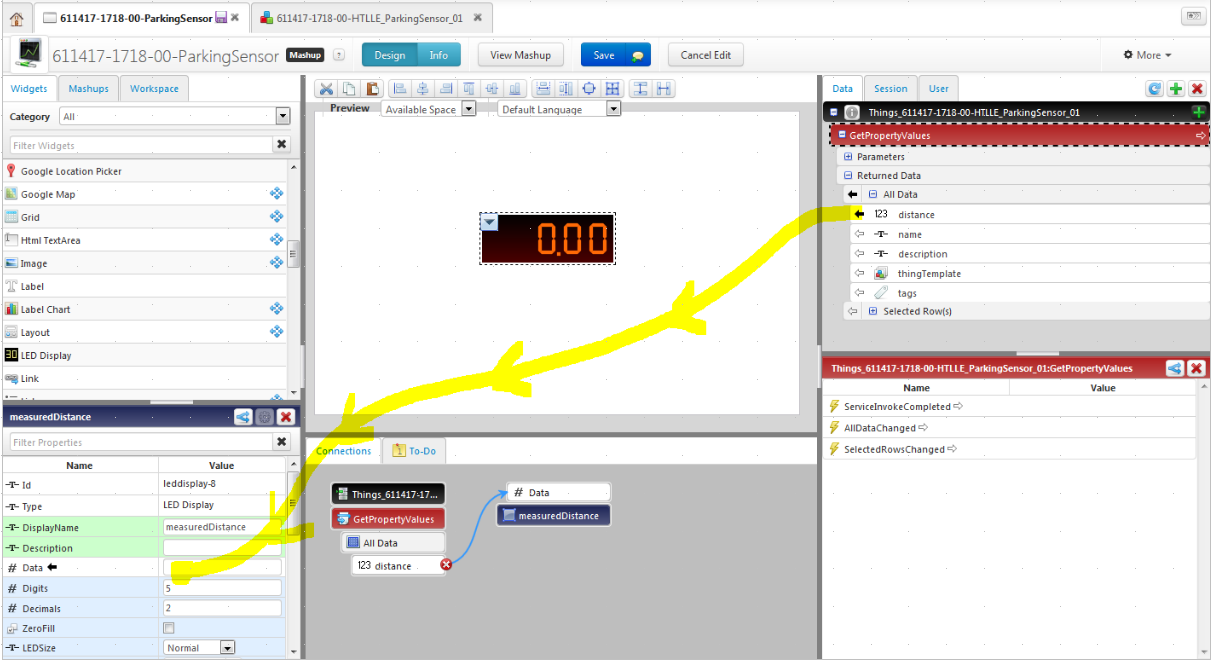
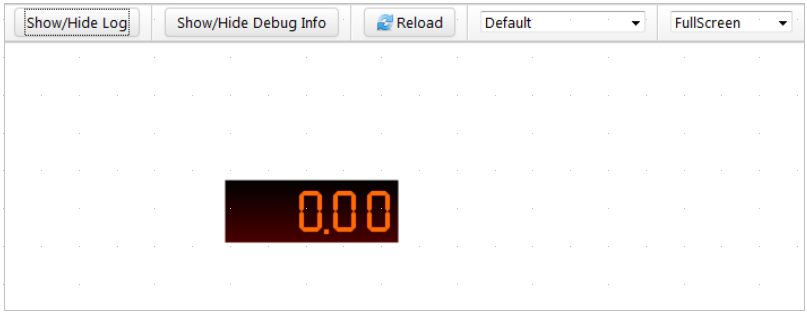
Now we can bind the property “distance” to the data value of the led display, by Drag & Drop. From now on the display knows where it gets its data from, but it doesn’t display any values:
Step 5: Tell ThingWorx when to update the values
We have to tell the mashup when to fetch new data. This can be done with event triggers.
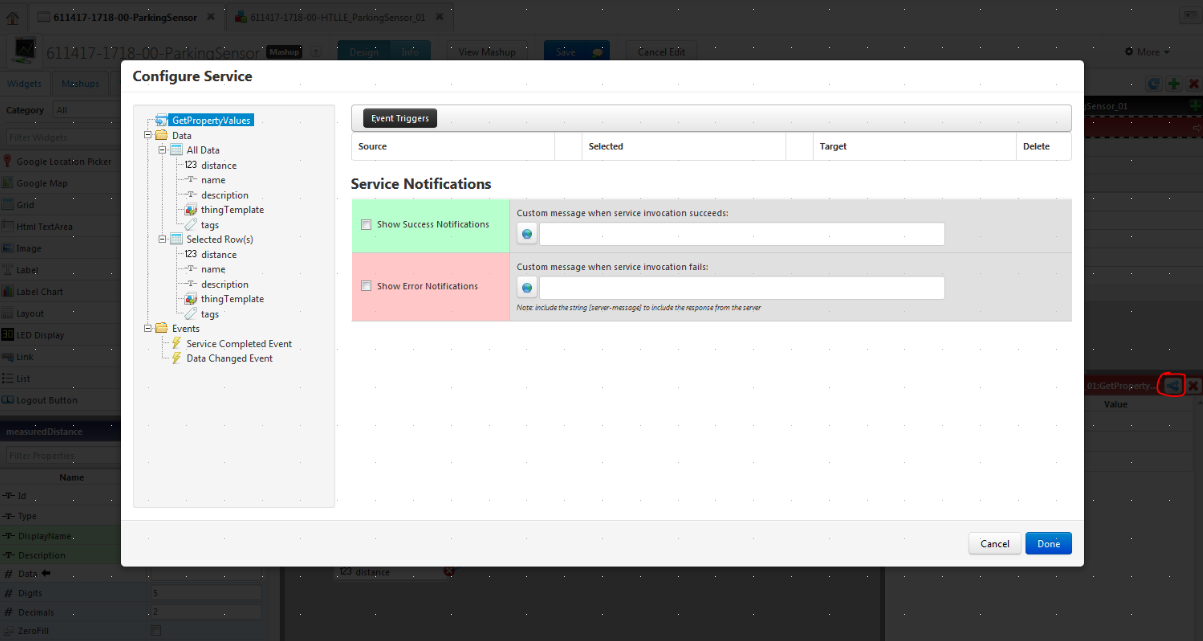
once it is configured, it should look like this:
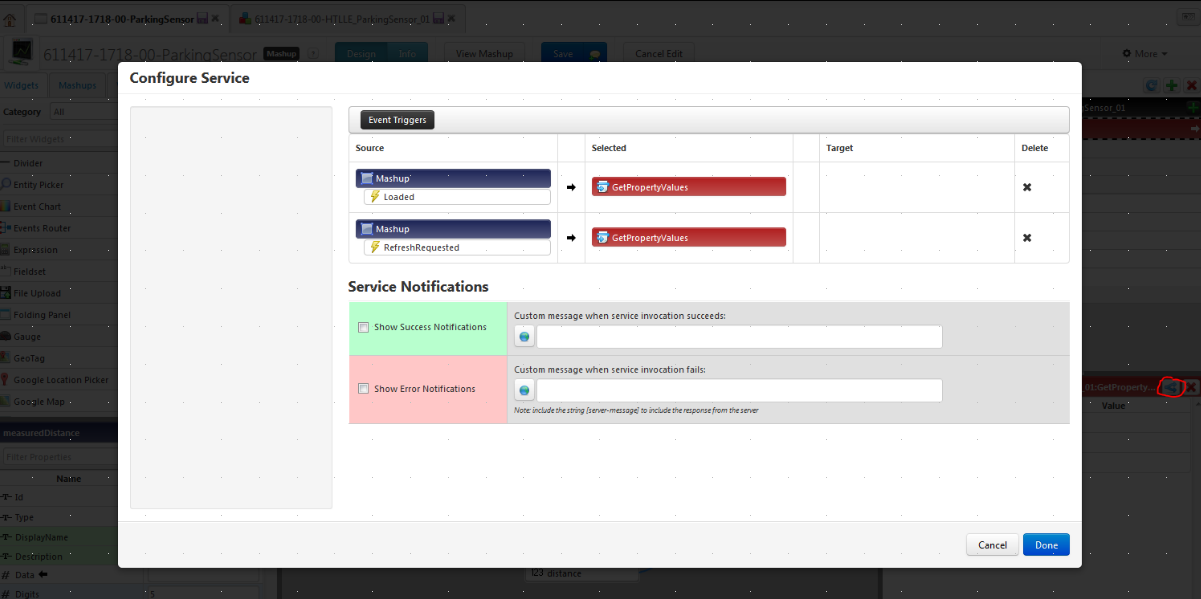
We tell it that we want to read data whenever the page is loaded (meaning once) and whenever a refresh is triggered.
So we should end up with the following setup:
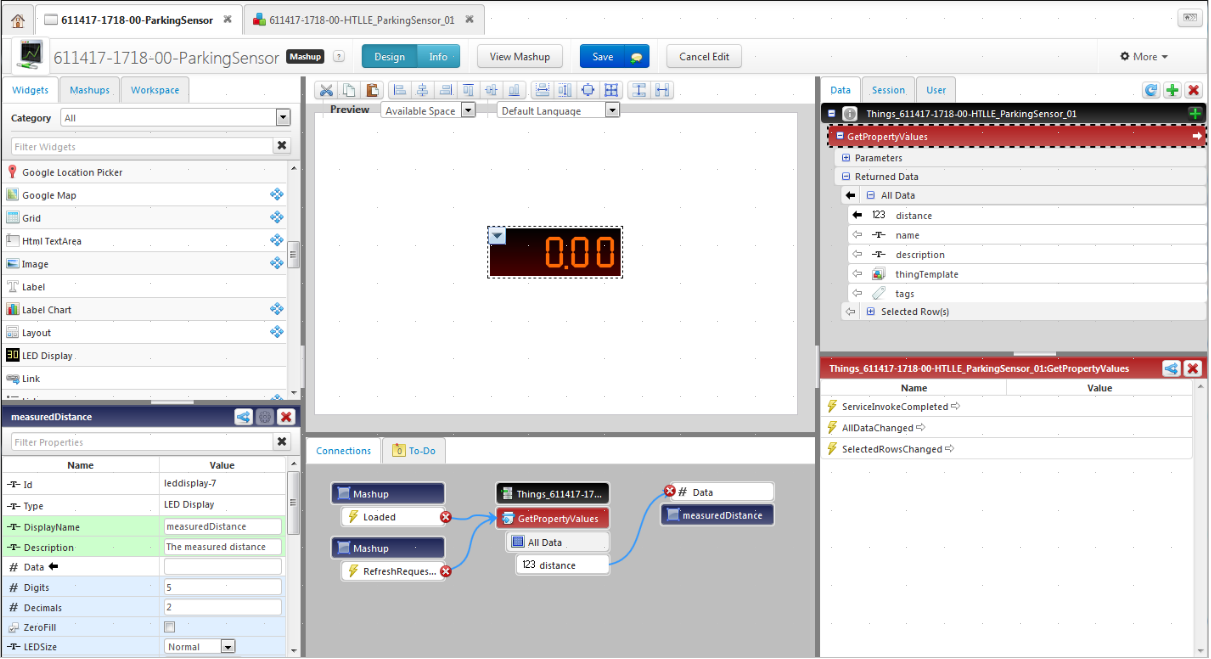
.. which produces results like this:
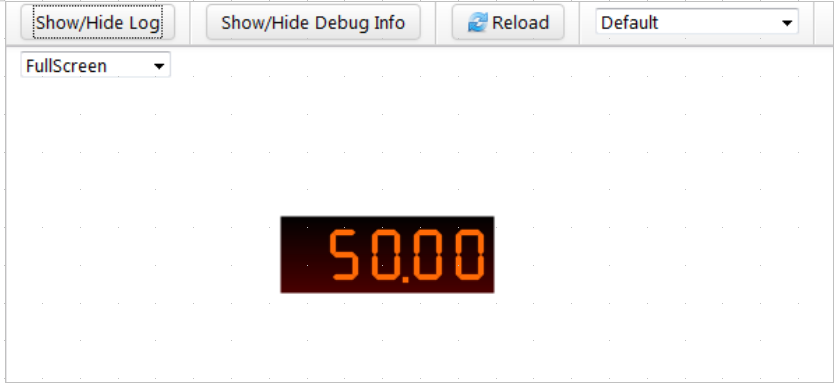
Step 6: Enable auto-update
Till now, we are in a state where we always get the correct values - but only if you refresh the page by hand. This can also be automated by adding an Auto Refresh widget as well:
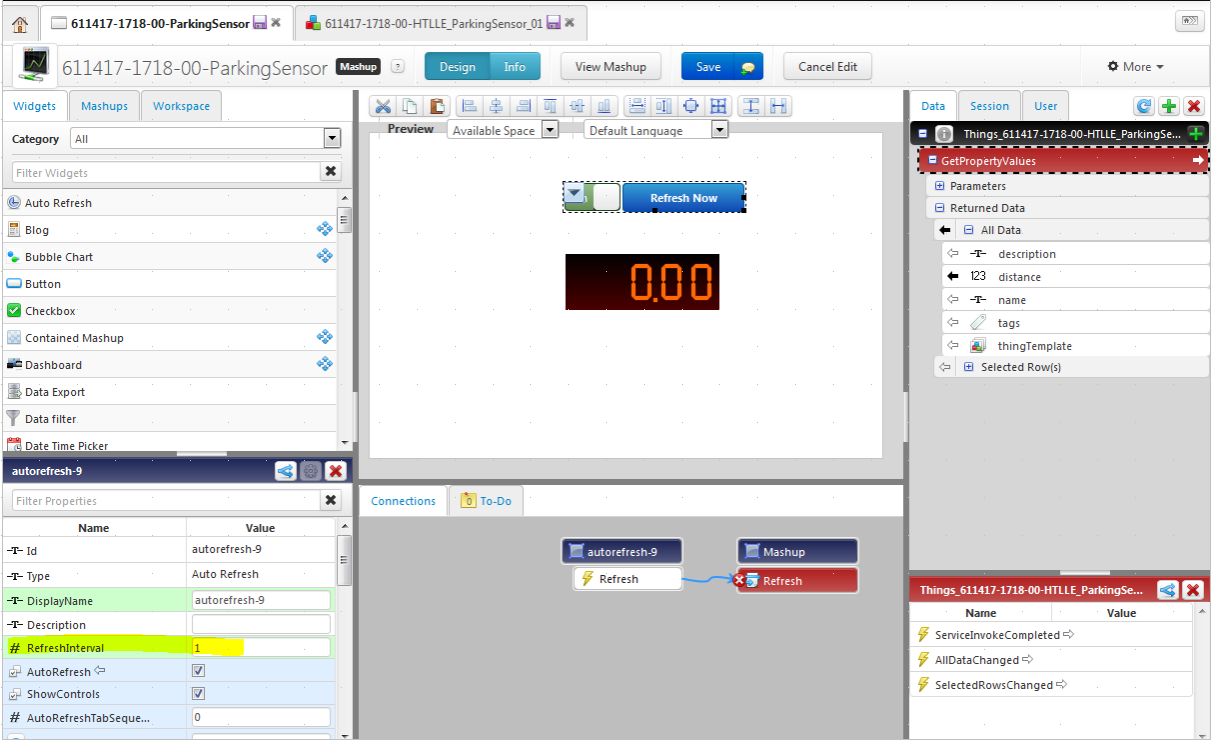
Here we set the Refresh interval to 1 second (or any useful period). Finally we have to tell TWX that we want to refresh the whole mashup with this period:
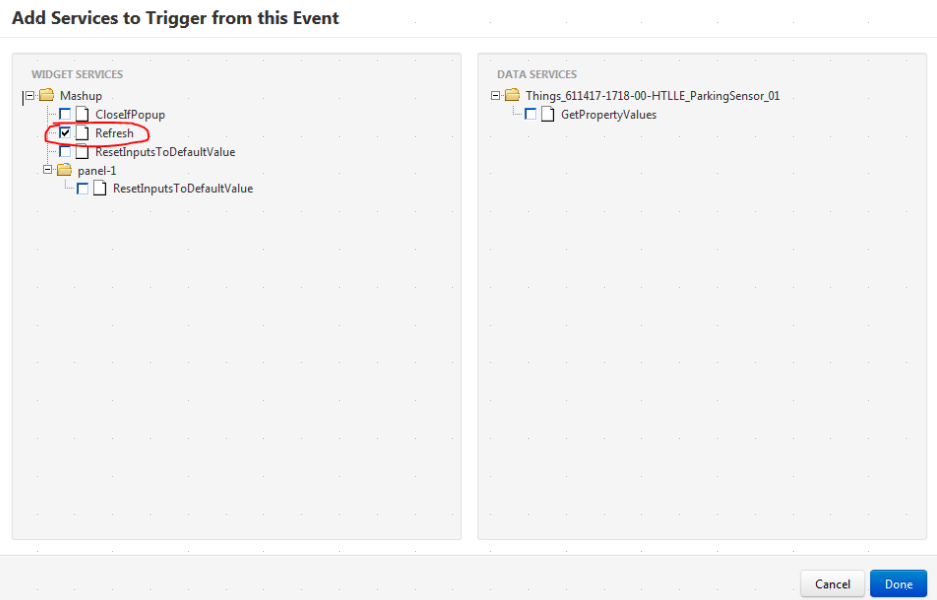
Now the mashup (and also every widget on it) is updated every second.
Thats it - happy coding !