You can use the installed applications on your Rasperry Pi without the need of installing a VNC server or another Remote Desktop tool. Everything is already there - right out of the box.
The name of the game: X-Screen forwarding
Prequisites
- Installed Raspiban
- Enabled SSH Server on the Raspberry
- A SSH Client that is able to display a forwarded X-Window.
Howto
The first step is to conenct to your rasperry via SSH. The important option is the ‘-X’. This requests X forwarding to the client (which is enabled by default at the raspiban ssh server).
user@linuxbox:~$ ssh -X pi@raspicam
pi@raspicam's password:
Linux rasperry 3.12.22+ #691 PREEMPT Wed Jun 18 18:29:58 BST 2014 armv6l
.
.
.
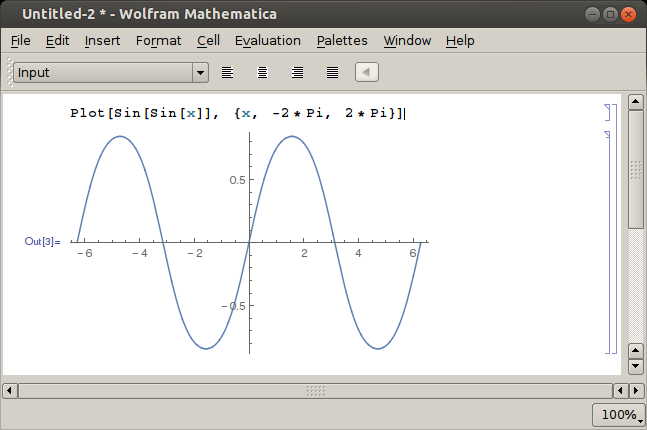
From now on you can start every program on your raspberry by simply writing the name into the ssh shell. IF the program has a graphical representation the window will be forwarded to your screen and blends into your linux desktop. In this case i started mathematica remotely - with success! (Dont expect too much speed in mathematica since it is still executed on the rasperry)
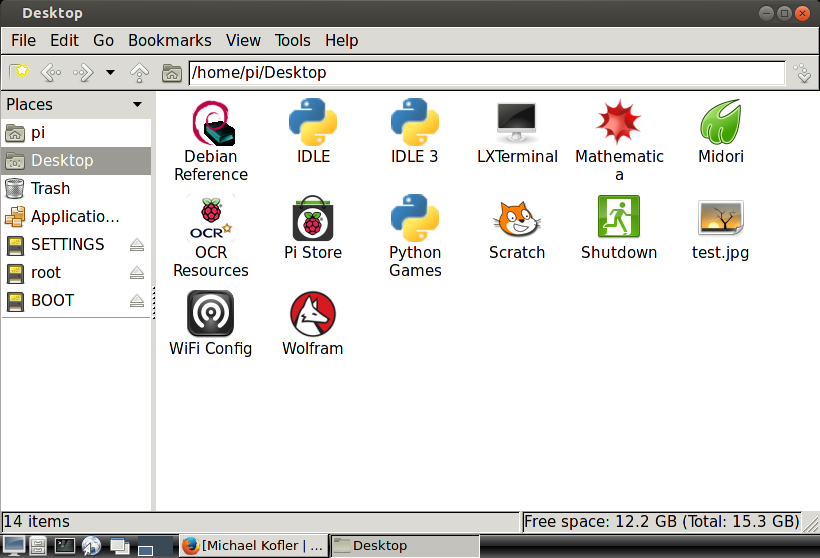
If you want to have the menubar of the pi on your desktop (which simplifies program starts) you start it like that:
pi@rasperry ~ $ lxpanel &
[1] 2734
As you may have guessed: lxpanel is the panel itself and the & operator at the end starts the program in the background (so that you can use the shell while lxpanel is still running). The number *2734 *is the process id of lxpanel.
If you want to close it then just kill its process on the pi:
pi@rasperry ~ $ kill -9 2734